Open topic with navigation
Promotions in Idealpos
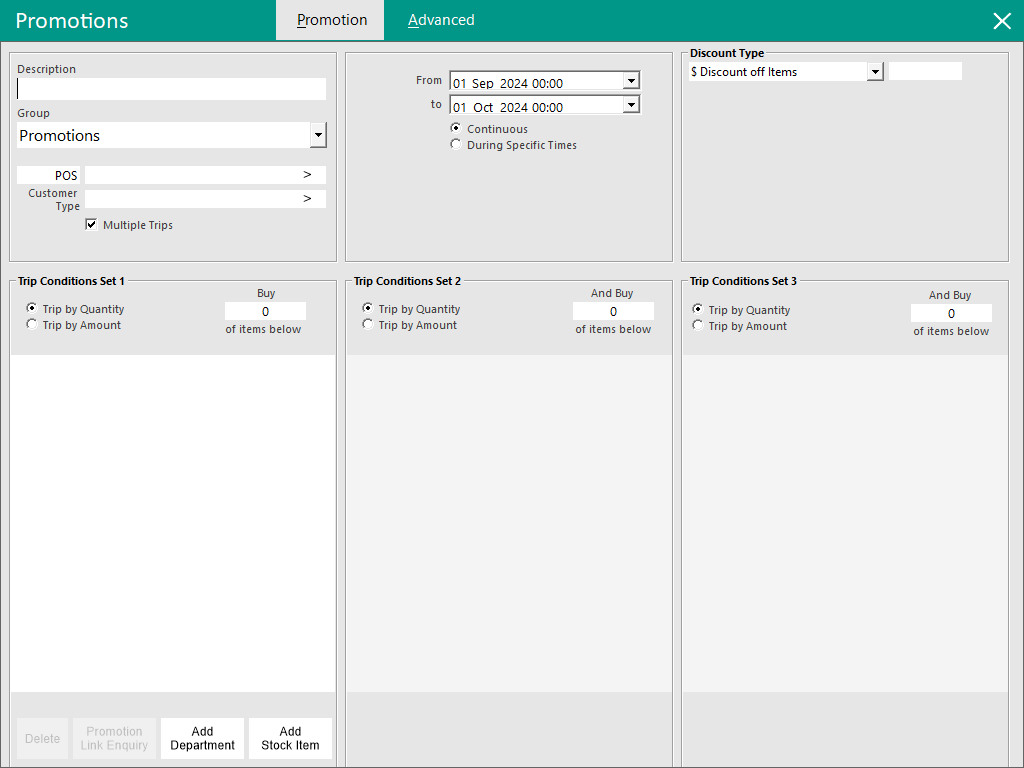
There are two tabs when creating or modifying Promotions in Idealpos.
- Promotion Tab - This is the main tab where the Promotion behaviour is configured.
- Advanced Tab - This is where Advanced functionality can be configured for the Promotion.
Promotion Tab
The Promotion tab is where the Promotion behaviour is configured (Promotion Name, Discount Type, Trip Conditions to trigger the Promotion, etc.).
Note!
The options (fields/checkboxes) in the Promotion tab will vary depending on the Discount Type that has been selected.
There are six sections in the Promotion tab:
- Description Section - This is where the Description, Promotion Group, POS/Location/Site/Price Level, Customer Type, Multiple Trips and Apply Over Trip Level options are configured.
- Date Section - This is where the Dates that the Promotion is active are configured.
- Discount Type Section - This is where the Discount Type is configured.
- Trip Conditions Set 1 to 3 Sections - This is where the items that will trigger the promotion are configured.
Description Section
- Description: Enter the Promotion Description.
- Group: Select the Promotion Group which the Promotion should be assigned to. Further information about Promotion Groups is available in the User Guide by clicking here.
- POS/Location/Site/Price Level: Only one of these options can be selected for each Promotion and a value set for the selected option. When a value has been configured for this option, the Promotion will only apply for the value selected.
- POS - Selecting POS and entering one or more POS numbers will ensure that the Promotion will only trigger at the selected POS Terminal numbers.
- Location - Selecting Location and entering one or more Locations will ensure that the Promotion will only trigger at the POS Terminals linked to the selected Locations.
- Site - Selecting Site and entering one or more Sites will ensure that the Promotion will only trigger at POS Terminals linked to the selected Sites.
- Price Level - Selecting Price Level and entering a Price Level will ensure that the Promotion will only trigger when the selected Price Level is active on the POS Terminal. For more information about Price Levels in Idealpos, click here.
- Multiple Trips: Enabling this checkbox will permit the Promotion to be tripped multiple times.
Note that the Multiple Trips option requires the exact quantity of the item(s) in the Trip Condition to be purchased in multiples. E.g. If a Promotion is set to "Buy 2 of items below", the Promotion will apply to each set of 2 items such as 2, 4, 6, 8, etc. of the item. Any additional quantity of the item that isn't part of the multiple will be sold at full price.
If the promotion is required to apply to every instance of an item once the trip level has been met, the Apply Over Trip Level option can be used. However, it should be noted that the Apply Over Trip Level option is only supported for specific Discount Types (as listed below). The Multiple Trips checkbox is available for these Discount Types - $ Discount off Items, % Discount off Items, Fixed Price for Items, Bonus Stock Item, Cheapest Item % Discount, Unit Price Each, Expensive Item % Discount, $ Discount Each Item, Discount Based on Price Level.
- Apply Over Trip Level: This checkbox will permit the Promotion to be applied over the trip level (e.g. if the Trip Condition Set requires 2 of an item to be purchased, it will apply to any quantity of the item over 2 - e.g. buying 2, 2.5, 3, 3.5, etc. will trigger the promotion for the entire quantity purchased). The Apply Over Trip Level checkbox is available for these Discount Types - % Discount off Items, Unit Price Each, $ Discount Each Item.
Date Section
- From/To: Enter a From/To Date and Time for when the Promotion will be available. The Promotion will only trigger when the current date and time falls within this range.
- Continuous - Select this option for the Promotion to apply continually between the Date and Time range configured in the From/To fields above.
- During Specific Times - Select this option to specify specific times when the Promotion should apply. Selecting this option will display additional options below it which can be used to further customise the specific times that the promotion is available.
- Time/to - Specify the From and To time which the Promotion will be available.
- Mon-Sun - Contains checkboxes for each day of the week. The Promotion will only be available on the days which have the checkbox enabled.
Discount Type Section
The following Discount Types are available (click on any of the Discount Types below for further details about the Discount Type):
- $ Discount off Items: Enter the $ Discount Amount to be applied to the items when the promotion is triggered.
- % Discount off Items: Enter the % Discount off Items to be applied to the items when the promotion is triggered.
- Fixed Price for Items: Enter the Fixed Price for Items to be applied to the items when the promotion is triggered.
- Bonus Stock Item: Enter the Bonus Stock Item Code that will be added to the sale when the promotion is triggered.
- Cheapest Item % Discount: Enter the Cheapest Item % Discount that will be used when the promotion is triggered.
- Unit Price Each: Enter the Unit Price Each that will be used to sell the items in the Promotion when the promotion is triggered.
- $ Discount off Total: Enter the $ Discount off Total amount that will be used when the promotion is triggered.
- Expensive Item % Discount: Enter the Expensive Item % Discount that will be applied to the most expensive item in the promotion when the promotion is triggered.
- $ Discount Each Item: Enter the $ Discount Each Item that will be discounted to each item in the promotion when the promotion is triggered.
- Discount Based on Price Level: Enter the Price Level that will be used to calculate the discount.
- Point Multiplication Factor: Enter the Point Multiplication Factor that will be used when the promotion is triggered.
- Include Instruction Items - This checkbox option is only available when using % Discount off Items, Cheapest Item % Discount, Expensive Item % Discount.
Trip Conditions Set 1, Trip Conditions Set 2, Trip Conditions Set 3 Sections
A Promotion can have between 1 and 3 Trip Condition Sets.
The Trip Condition Sets define the Stock Items that must be purchased to trigger the Promotion.
At minimum, a Promotion must have at least Trip Condition Set 1 populated.
If only one Trip Condition Set is populated, the Promotion will trigger once the minimum quantity or spend amount has been met on those items in the Trip Condition Set.
If multiple Trip Condition Sets are configured, the Promotion will trigger once the minimum quantity or spend amount has been met on each of the populated Trip Condition Sets.
An example of using Multiple Trip Condition Sets is when the customer is required to purchase multiple item types to trigger the promo, such as a Drink, Meal and a Confectionery item.
In that example, the Drinks will be added to Trip Condition Set 1, Meals added to Trip Condition Set 2 and Confectionery Items added to Trip Condition Set 3 (and specify the quantity or amount the customer must spend on each set to receive the promo).
Note!
The "Buy # of Anything" or "Spend $X.XX on Anything" options are only available in Trip Conditions Set 1.
Trip Condition Sets 2 and 3 only support the options to "Buy # of items below" or "Spend $X.XX on items below".
- Trip by Quantity/Buy # of Anything -If the Trip by Quantity option is selected together with the "of Anything" option, enter the quantity of items that need to be purchased to trigger the Promotion. This option to Buy # of Anything is only available in Trip Conditions Set 1.
- Trip by Amount/Spend $X.XX on Anything -If the Trip by Amount option is selected together with the "on Anything" option, enter the amount that needs to be spent on items to trigger the Promotion. This option to Spend $X.XX on Anything is only available in Trip Conditions Set 1.
- Trip by Quantity/Buy # of items below - If the Trip by Quantity option is selected together with the "of items below" option, enter the quantity of items that need to be purchased from the list below to trigger the Promotion.
- Trip by Amount/Spend $X.XX on items below - If the Trip by Amount option is selected together with the "on items below" option, enter the amount that needs to be spent on the items from the list below to trigger the Promotion.
- From these items only checkboxes - These checkboxes appear below each Trip Condition Set (only for specific Discount Types that are listed below). When enabled, the selected Discount Type will only be calculated from the items that appear within the Trip Condition Sets that have the checkbox(es) enabled.
- Calculate Discount from these items only - This checkbox only appears below each Trip Condition Set for the Discount Types "% Discount off Items" or "Discount Based on Price Level".
- Calculate Fixed Price from these items only - This checkbox only appears below each Trip Condition Set for the Discount Type "Fixed Price for Items".
- Cheapest Item Discount from these items only - This checkbox only appears below each Trip Condition Set for the Discount Type "Cheapest Item % Discount".
- Calculate Unit Prices from these items only - This checkbox only appears below each Trip Condition Set for the Discount Type "Unit Price Each".
- Expensive Item Discount from these items only - This checkbox only appears below each Trip Condition Set for the Discount Type "Expensive Item % Discount".
Delete - This button can be used to remove items from the Trip Conditions Set.
Promotion Link Enquiry - This button can be used to display any current Promotions that are active for the currently selected Item or Department in the Trip Condition Set.
Add Department - This button can be used to add a Department to the Trip Conditions Set.
Add Stock Item - This button can be used to add a Stock Item to the Trip Conditions Set.
Advanced Tab
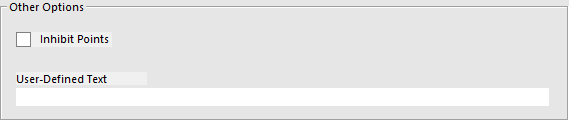
The Advanced tab provides you with an Inhibit Points option to Inhibit Points from accruing when the promotion is triggered and a customer has been added to the transaction.
In order for the Inhibit Points option to take effect, the Yes/No option "Inhibit Points on Discounts/Promotions" must be disabled.
There is also a User-Defined Text field that allows you to add in specific codes supplied by Idealpos for additional Promotion functionality.
This section will not be used unless specified by Idealpos for your current installation.
Go to File > Sales > Promotions > Promotions > Modify > Advanced > Other Options.
For more information about the functions that are available via the User-Defined Text field, click here.
Open topic with navigation